


"AI agent" is the phrase of the year, and building one sounds like it should require a research lab. It doesn't. With n8n and a free language-model key, you can build a working agent — one that remembers your conversation, does arithmetic, and looks things up on the web — in about an hour, without writing code and without spending a rupee.
This tutorial starts from absolute zero. By the end, you'll have a chat agent running in your browser, you'll understand exactly how its three moving parts fit together, and you'll know what it costs to actually run one. The diagrams below map each stage, and every node name and setting was verified against n8n 2.40.7 running locally in September 2026.
What an AI agent actually is (the 60-second version)
Forget the hype for a moment. An AI agent is a language model given three things:
- A brain — the language model (LLM) itself, which reasons and decides what to do next.
- Hands — tools: capabilities the model can call, like doing exact math, searching the web, or reading your Gmail.
- Memory — conversation context, so it doesn't forget what you told it two messages ago.
That's the whole idea: reason → act → observe → repeat. The model thinks, calls a tool, reads the result, thinks again, and answers. n8n makes this concrete — its AI Agent node literally has three ports on it labeled Chat Model, Memory, and Tool. You wire them up visually, and the agent comes to life.
Agent vs. chatbot vs. automation workflow: the difference that matters
People use these words interchangeably. They shouldn't.
- A chatbot follows a script. If your message matches a known pattern, you get the canned answer; if not, you get "I don't understand."
- An automation workflow follows a fixed sequence of steps you designed. It always does step 1, then step 2, then step 3 — reliable, but it can never surprise you.
- An agent decides. You give it a goal and tools; it figures out the sequence on the fly, calls tools when needed, and adapts when results are unexpected.
This distinction matters because it tells you what not to build first. Don't build an agent for a job that's a fixed sequence of steps — a plain workflow does that cheaper and more reliably. Build an agent for jobs where the path varies: answering questions over changing data, triaging messy inputs, researching a topic. Our tutorial agent — a chat assistant that can calculate and look things up — is the perfect first build because the path is genuinely different every time you ask something new.
What you need (the ₹0 stack)
| What | The free option | What it costs |
|---|---|---|
| n8n | Cloud 14-day free trial (no credit card) — or self-host the free Community Edition | ₹0 |
| Language model | Free API key from Google AI Studio (Gemini) or Groq | ₹0, no credit card |
| Tools | Calculator and Wikipedia tool nodes — built into n8n | ₹0, no keys needed |
| Your time | About 45–60 minutes, uninterrupted | — |
A note on the LLM choice. Google's AI Studio gives you a free Gemini API key with no credit card — enough for hundreds of test chats a day. Groq's free tier is even faster and also needs no card, but its free model list changes often (older tutorials naming Llama models on Groq are already outdated). For this tutorial, use Gemini — its function-calling support is what lets the agent reliably use tools. Either way: check the limits on your own account (Google's docs no longer publish one fixed table), and never send sensitive or personal data to a free-tier API — free tiers may use your prompts to improve their products.
Step 1 — Get n8n running
Two routes. Pick one.
Route A (easiest): n8n Cloud trial. Sign up at n8n.io/cloud. You get a 14-day trial with full functionality and no credit card required. After the trial, the Starter plan is €24/month (~₹2,600) with 2,500 workflow executions — but you won't need it for this tutorial.
Route B (free forever): self-host. If you have Node.js 18 or newer installed, one command starts n8n on your own machine:
npx n8nThen open http://localhost:5678 in your browser. That's it — this tutorial's node names and settings were validated against exactly such a local instance (n8n 2.40.7). The Community Edition is free, with unlimited executions and unlimited workflows; you just manage the server yourself. (On first launch, n8n asks you to create an owner account — a local login for your own instance, nothing more.)
Step 2 — Create a workflow and add a chat trigger
In n8n, click Create workflow to open an empty canvas. Every agent needs a way to receive messages, so search the node panel for "When chat message received" (the Chat Trigger) and drop it onto the canvas.
Leave the defaults. This node gives you a built-in chat window for testing — no frontend to build, no webhook to configure.
Step 3 — Add the AI Agent node
Search for AI Agent and drag it onto the canvas, connecting it to the Chat Trigger. When you click it, you'll see three sub-node ports at the bottom: Chat Model (required — marked with a red asterisk), Memory (optional), and Tool.
One thing that trips up beginners: many 2025-era tutorials tell you to pick an agent type from a dropdown (Conversational Agent, ReAct Agent, and so on). That dropdown no longer exists. Since n8n 1.82, every AI Agent node runs as a single unified "Tools Agent" — the others were folded into it. If a tutorial you're following asks you to choose an agent type, it's outdated.
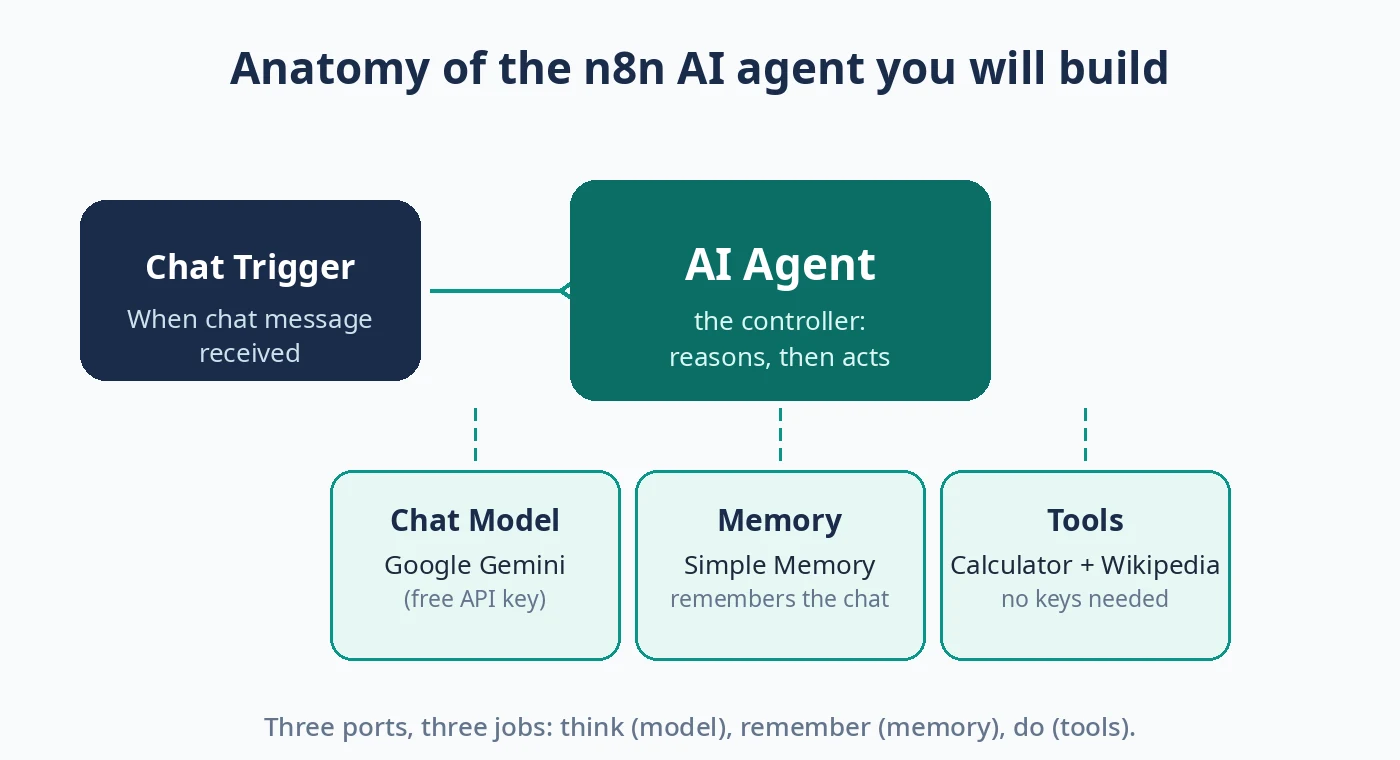
This is the whole build at a glance. Everything from here on is just filling in those three ports.
Step 4 — Attach a chat model (the brain)
Click + Chat Model under the AI Agent node and choose Google Gemini Chat Model. You'll be asked to create a credential — paste the free API key you generated at Google AI Studio (aistudio.google.com → Get API Key). The dialog shows the model dropdown and the key field; nothing else needs changing.
For the model name, pick the current Flash model from the dropdown — model names change every few months, so always trust the dropdown over any tutorial (including this one, if you're reading it in 2027). At the time of writing, gemini-2.5-flash is the sensible default: fast, cheap, and reliable at tool calling.
Step 5 — Add memory (so it doesn't forget you)
Click + Memory and choose Simple Memory. This keeps the last few turns of conversation so follow-up questions work ("and what about in euros?"). The key setting is the session key — set it to the expression:
{{ $json.sessionId }}The Chat Trigger generates a session ID for each conversation, and this expression tells memory which conversation each message belongs to. Leave the context window at its default (10 turns is plenty for a first agent). Note: Simple Memory stores chat history locally in your n8n instance — fine for learning, but for a scaled-up setup you'd switch to an external store like Postgres or Redis.
Step 6 — Give it tools (the hands)
Click + Tool twice and add:
- Calculator — lets the agent do exact arithmetic. LLMs are famously bad at mental math; this tool fixes that.
- Wikipedia — lets the agent look up facts instead of guessing.
Neither needs an API key or any configuration. That's deliberate: your first agent should teach you the pattern of tool use without any credential friction. You'll add meatier tools (Gmail, Google Sheets, HTTP requests) in your second build.
Step 7 — Write the system message
In the AI Agent node's options, find System Message and give your agent a role. A good first system message is specific about the job, the tools, and the boundaries:
You are a helpful research assistant.
- Use the Wikipedia tool when the user asks about facts, people, places, or events. Never guess dates or facts you are unsure about.
- Use the Calculator tool for any arithmetic. Never do math in your head.
- Be concise. If you don't know something, say so.
Step 8 — Test it (the fun part)
Click Open chat (not "Execute Workflow") and run three tests:
- Tool test: "What is 15% of ₹48,500?" — the agent should call the Calculator and return ₹7,275.
- Knowledge test: "Who founded Infosys and when?" — the agent should call Wikipedia rather than answer from training data.
- Memory test: "My name is Priya." Then: "What's my name?" — the agent should remember, thanks to Simple Memory.
If all three work, congratulations — you've built an AI agent. It reasons, it acts through tools, and it remembers.
Why it works: the loop inside the node
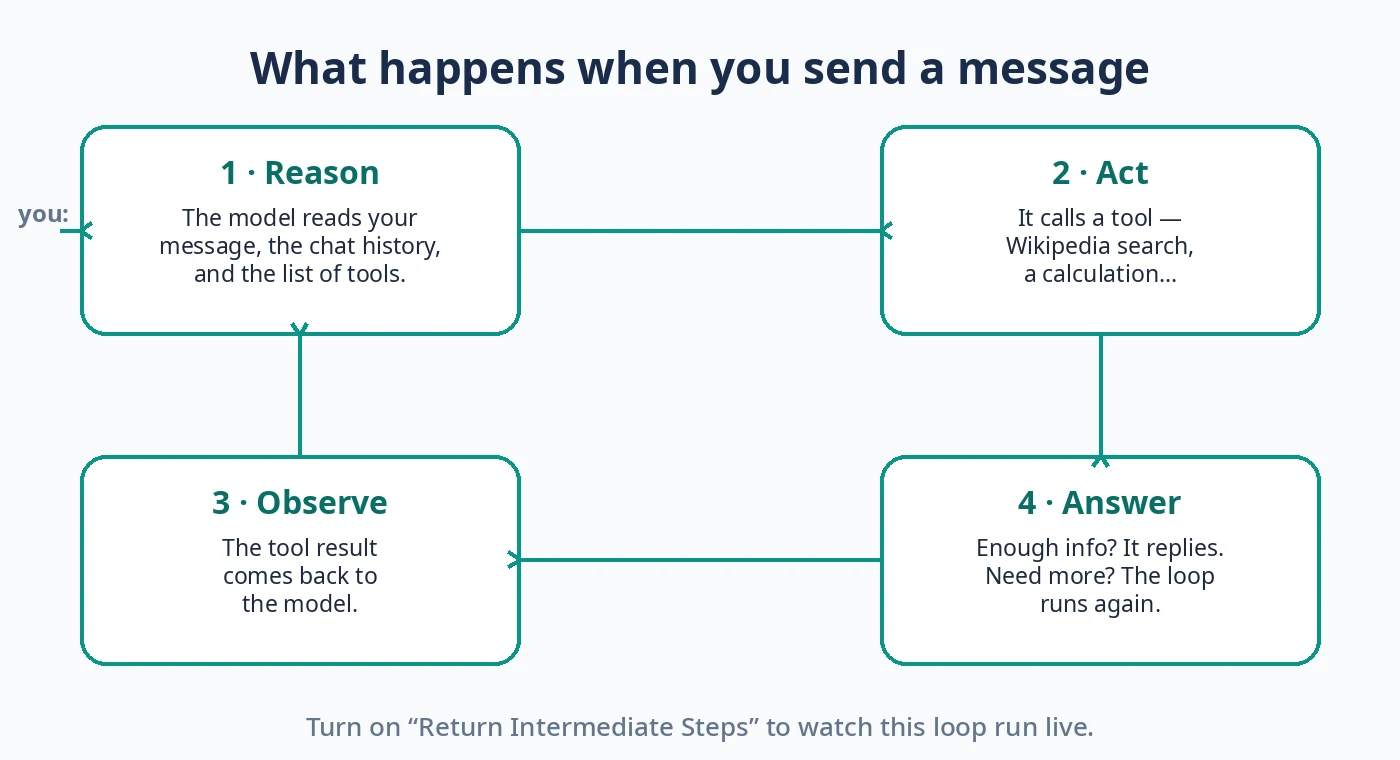
Every time you send a message, the AI Agent node runs a loop:
- Reason — the model reads your message, the conversation history, and the list of available tools, then decides: answer directly, or call a tool first?
- Act — if it chose a tool, n8n executes it (the Wikipedia search runs, the Calculator computes).
- Observe — the tool's result goes back to the model, which reasons again.
- Answer — once it has what it needs, it responds.
Enable Return Intermediate Steps in the node's options to watch this loop happen — it's the single best way to understand what your agent is actually doing, and the first place to look when something behaves oddly.
Troubleshooting: five things that go wrong (and the fix)
| Symptom | What's happening | The fix |
|---|---|---|
| "A Chat Model sub-node must be connected" | The required Chat Model port is empty (red asterisk) | Click + Chat Model under the AI Agent node and attach a model |
| Chat shows raw JSON instead of a reply | The final node's output field isn't named output |
The Chat Trigger looks for a field literally named output — rename it |
429 / rate-limit errors from the LLM |
You hit your free-tier limits | Slow down test bursts; check your actual limits in AI Studio; free-tier limits vary per account |
| Agent answers from memory instead of using Wikipedia | The model is being lazy about tool use | Make the system message explicit ("use the Wikipedia tool for facts"), and check intermediate steps to see its reasoning |
| Old tutorial references an agent-type dropdown | Tutorial is from before n8n 1.82 | Ignore it — everything is the unified Tools Agent now; no type selection needed |
What it actually costs to run
The learning phase costs ₹0: n8n Cloud trial or free self-hosting, a free Gemini key, keyless tools. But what if you kept it running?
Token math, illustrated: suppose a typical chat turn uses ~1,500 input tokens and ~200 output tokens. On a cheap Flash-class model at roughly $0.075 per million input tokens (~₹7.2 at ₹96/USD), one conversation turn costs about one paise. A thousand turns a day — a genuinely busy little agent — lands around ₹10–12 per day in model costs.
The bigger cost is the platform. Once the n8n Cloud trial ends, Starter is €24/month (~₹2,600) for 2,500 executions — where one execution is a full workflow run, not a chat message. Self-hosting the Community Edition stays free (a small VPS runs ~₹500–800/month), which is why it remains the default choice for Indian indie hackers running personal agents. For an honest breakdown of n8n vs Zapier vs Make pricing in rupees, see our n8n vs Zapier vs Make comparison.
Five agents to build next
Now that the pattern is in your hands — trigger → agent → model + memory + tools — here are five genuinely useful next builds, with an Indian context:
- Lead qualifier. A WhatsApp-triggered agent that chats with inbound leads, asks three qualifying questions, and logs the result to Google Sheets. (Pair with our WhatsApp Business API pricing guide to cost the messaging side.)
- Invoice data extractor. Drop vendor invoice PDFs into a folder; the agent reads each one and fills a spreadsheet with GSTIN, amounts, and due dates. Indian freelancers drown in these.
- UPI payment reminder. A scheduled agent that checks an overdue-invoice sheet every morning and drafts polite reminder messages. Human approval before anything sends — agents suggest, humans decide.
- Support ticket triage. The classic: new tickets get classified (billing / technical / refund), prioritized, and routed — with the agent drafting the first reply for a human to approve.
- Content repurposer. Feed it your latest blog post; it drafts a LinkedIn post, an X thread, and a newsletter blurb in your voice. (We run a publication — we wrote about building a real production agent here.)
A word of caution before you go further: agents that act in the world — sending emails, moving money, posting publicly — need guardrails. Start every action behind a human approval step (the AI Agent node has a "Human review for tool calls" option for exactly this), log every tool call, and keep credentials scoped to the minimum they need. The February 2026 "why no-code agents break" discourse exists for a reason: production agents fail on expired credentials and changed APIs, not on model intelligence.
Frequently asked questions
Do I need to know how to code to build an AI agent in n8n? No. Everything in this tutorial is done through n8n's visual canvas — dragging nodes, filling in fields, writing a system message in plain English. Code becomes useful later (for custom tools or data wrangling), but it isn't required to build a working agent.
How much does it cost to build an AI agent with n8n? Nothing, to learn: n8n's 14-day cloud trial needs no credit card, the Community Edition is free to self-host, and both Google AI Studio and Groq offer free API tiers with no card. Running costs only appear at scale, and they're dominated by the n8n plan (€24/month Starter), not the model — chat-scale token usage costs paise per conversation.
n8n Cloud or self-hosted — which should a beginner pick? Cloud, for your first week: zero setup, and the trial needs no credit card. Move to self-hosting when you're comfortable and want it running permanently for free. Our n8n vs Zapier vs Make guide breaks down the breakeven math.
What's the difference between an AI agent and a chatbot? A chatbot follows a script or fixed rules; an agent reasons about your request and decides which tools to use on the fly. The n8n AI Agent node's reason → act → observe loop is the practical difference — the same workflow can take a different path every time you run it.
Which free LLM is best for n8n agents? For tool-calling reliability, a Flash-class Gemini model via the free AI Studio key is the safest beginner pick. Groq's free tier is faster but its free model list changes frequently — always verify the current model IDs on the provider's own site before following any tutorial's model names.
Can I use this agent in production? Not as built here. A production agent needs error handling, credential rotation, execution monitoring, human approval on consequential actions, and version discipline — n8n changes node behavior across releases (the agent-type unification in 1.82 broke many older tutorials). Treat this build as your learning foundation, then harden each layer.
Sources
- n8n documentation — AI Agent node (docs.n8n.io): agent architecture, sub-node ports, system message, intermediate steps
- n8n pricing (n8n.io/pricing): Starter €24/month (€20 annual), 2,500 executions/month, 14-day cloud trial, Community Edition free
- Google AI Studio — Gemini API rate limits (ai.google.dev/gemini-api/docs/rate-limits): free tier, no credit card; limits vary per account and are shown in AI Studio
- Groq documentation (console.groq.com/docs/rate-limits): free tier, no credit card; per-model RPM/RPD/TPM limits
- n8n community research (September 2026): AI Agent node internals, Tools Agent unification since v1.82, Chat Trigger
chatInput/sessionId/outputfield behavior - Independent 2026 pricing analyses: cloudzero.com, aiearnerhub.com (n8n plan details cross-checked)
AI-assistance disclosure: this article was researched and drafted with AI assistance, and every technical claim was verified against the sources above; node names and settings were checked against n8n 2.40.7 run locally by the author. Published as Amaan Ahmad on KnowledgeSense.

Other Articles

Home Remedies for Hair Fall: What the Science Actually Says (2026)
n8n vs Zapier vs Make: Which Automation Tool Is Worth It in India (2026)


